
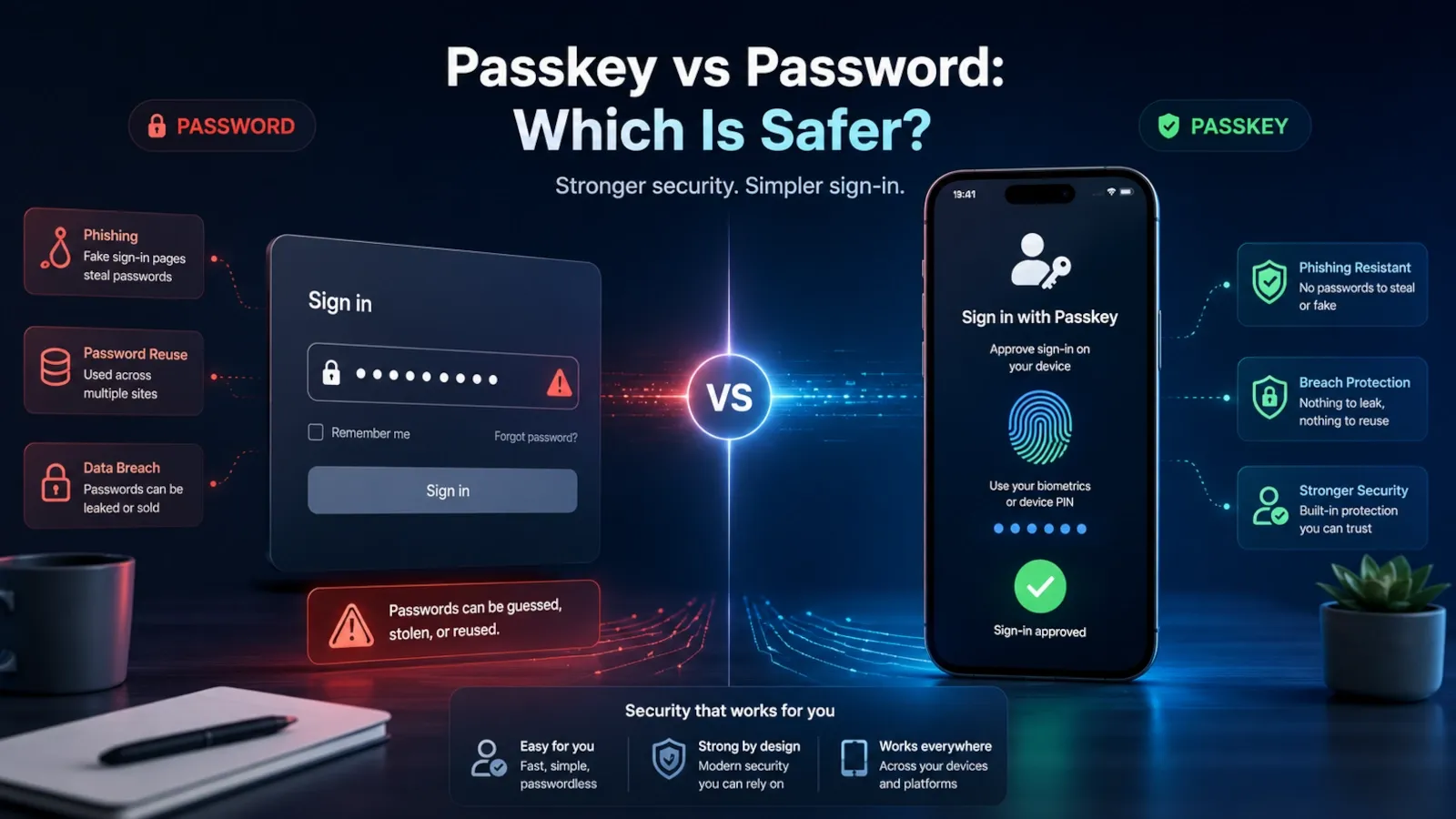
Passkeys are becoming one of the biggest changes in everyday account security. They promise sign-ins without typing passwords, better protection against phishing, and fewer problems caused by reused or leaked passwords.
But that does not mean every password has disappeared, or that a passkey automatically makes every account safe.
Many websites still keep password sign-in enabled. Some accounts support passkeys only on certain devices or browsers. Some people do not know where their passkeys are stored. And account recovery can still become the weakest part of the whole setup.
This guide is not another basic explanation of what a passkey is. If you want the full beginner explainer, read What Is a Passkey? first.
This article answers a more practical question:
Should you use a passkey or a password for your accounts, and which one is safer in real life?
Quick answer
Passkeys are usually safer than passwords because they cannot be reused, are much harder to phish, and do not require you to type a secret that can be stolen.
A password is still necessary when a website does not support passkeys or keeps password sign-in enabled as a fallback. For most people, the safest setup is to use passkeys where available, keep unique passwords in a password manager where passkeys are not available, enable two-factor authentication when needed, and protect account recovery methods.
The best everyday setup is not passkey only or password only.
It is:
- passkeys for accounts that support them;
- unique passwords in a password manager where passwords are still required;
- two-factor authentication where it still adds protection;
- strong recovery settings everywhere.
When to use this guide
Use this guide if you are trying to decide whether to:
- create a passkey for an important account;
- keep using a password instead;
- use both a passkey and a password;
- replace passwords with passkeys where possible;
- keep a password manager after turning on passkeys;
- understand whether passkeys are actually safer;
- protect accounts where password sign-in is still enabled.
This guide is for normal users, creators, professionals, families, and small business owners who want a clear decision, not a cryptography lesson.
Before you start
Before comparing passkeys and passwords, understand these four practical points.
- A password is a text secret you type or store in a password manager.
- A passkey is a cryptographic sign-in credential unlocked locally by your device, password manager, or security key.
- A passkey is not your fingerprint, face scan, or device PIN. Those usually unlock access to the passkey locally.
- Some services let you use both a passkey and a password, so your password may still matter after you create a passkey.
If you need the full technical explanation of how passkeys work, read What Is a Passkey?.
Passkey vs password: the short answer
A passkey is usually safer for sign-in because it removes several common password problems.
With a password, the same secret can be weak, reused, typed into a fake website, stolen from a phishing page, exposed in a breach, or guessed through attacks. A password can be strong if it is long, random, unique, and stored safely, but many people do not use passwords that way.
With a passkey, there is no reusable password to type. The website stores a public key, while the private credential stays protected by your device, credential manager, or security key. During sign-in, your device proves that it has the right credential without sending a reusable password to the website.
That makes passkeys especially strong against phishing, password reuse, leaked password databases, and credential stuffing.
However, passwords still win in one area: compatibility. They work almost everywhere. Passkeys are growing quickly, but they are still not supported by every website, app, browser, operating system, or account type.
Passkey vs password comparison table
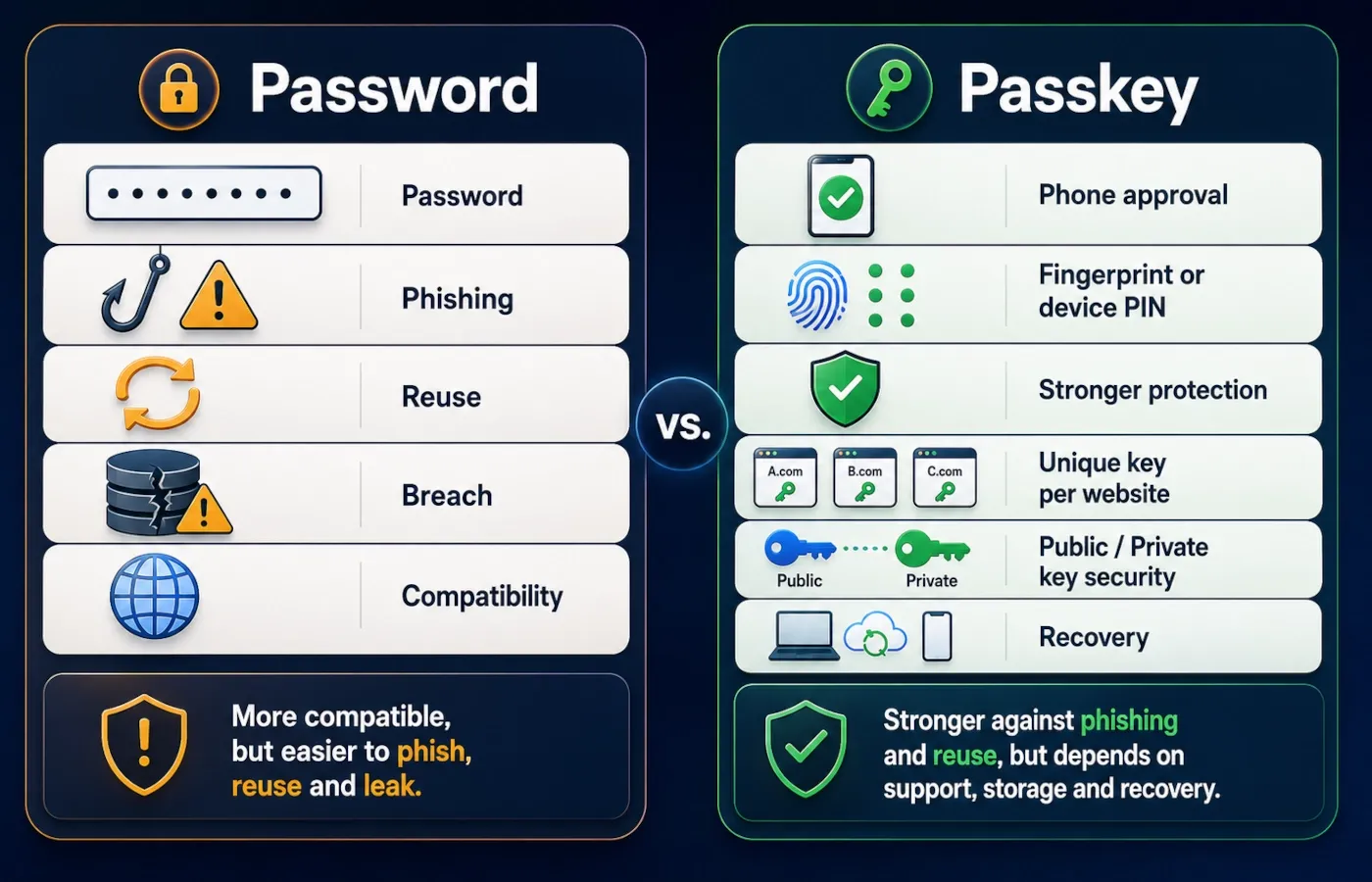
| Feature | Password | Passkey |
|---|---|---|
| What you use | Text secret | Cryptographic credential |
| What you remember | A password or passphrase | Usually nothing |
| How you unlock it | You type it | Device PIN, fingerprint, face scan, screen lock or security key |
| Phishing risk | Higher | Much lower |
| Reuse risk | High if reused | Very low because each passkey is service-specific |
| Data breach risk | Password hashes may be stolen | The service stores a public key, not your private key |
| Works everywhere | Almost everywhere | Only where supported |
| Recovery | Usually email, phone, backup codes | Depends on device, credential manager, security key and account recovery |
| Best use | Sites without passkey support | Accounts that support passkeys |
| Main weakness | Weak, reused, leaked or phished passwords | Device loss, storage confusion, recovery confusion |
The simple rule is this:
Use a passkey where it is supported and you understand where it will be stored. Use a strong unique password in a password manager where passkeys are not available.
What changes when you use a passkey instead of a password?
When you use a password, the login process depends on a secret that you know or store.
You type the password into a login page. The website checks whether it matches what it expects. If the password is weak, reused, stolen, or typed into the wrong place, the account can be at risk.
When you use a passkey, the login process changes.
Instead of typing a password, you approve the sign-in with your device, password manager, or security key. You may unlock it with a fingerprint, face scan, device PIN, screen lock, Windows Hello, or a physical security key.
The website does not need your password for that passkey sign-in. It verifies a cryptographic response from your device.
In practical terms, this changes the security model:
- there is no password to type into a fake login page;
- there is no password to reuse across websites;
- there is no password that the website can directly store for that passkey login;
- the login depends more on your device, credential manager, browser, and recovery setup.
That last point matters. Passkeys solve many password problems, but they introduce a different responsibility: you must know where your passkeys are saved and how you will recover access if something goes wrong.
Where passkeys are stronger than passwords
Passkeys are strongest in the areas where passwords fail most often.
Passkeys are much harder to phish
A phishing page can trick a person into typing a password. It can copy the visual design of a real website, ask for a login, and capture the password.
Passkeys work differently. A passkey is created for a specific website or app. In normal use, it cannot simply be typed into a fake page like a password.
That does not mean phishing disappears forever. Attackers can still try social engineering, malicious browser extensions, session theft, fake support messages, or account recovery abuse. But passkeys raise the bar significantly compared with typed passwords.
Passkeys are not reused like passwords
Password reuse is one of the biggest everyday security problems.
If you use the same password on multiple sites and one site is breached, attackers may try the same password on your email, bank, cloud storage, social media, and shopping accounts.
That is credential stuffing.
Passkeys are service-specific. A passkey created for one service is not reused like a normal text password on another service.
Passkeys remove weak password choices
People often create passwords that are easy to remember, which also makes them easier to guess or crack.
Examples include:
- names;
- birthdays;
- keyboard patterns;
- common words;
- reused passwords;
- small changes like adding
!or2026.
Passkeys remove the need to invent a password for supported sign-ins. You still need to protect the device or credential manager, but you are not relying on a human-created password.
Passkeys reduce damage from password database leaks
When a company suffers a password-related breach, attackers may obtain password hashes or other authentication data. If users reused those passwords elsewhere, the damage can spread.
With passkeys, the service stores a public key for verification, not the private credential needed to sign in. A leaked public key is not useful in the same way as a leaked password or reusable password hash.
This is one of the strongest reasons passkeys are considered safer than passwords.
Where passwords are still necessary
Passwords are not gone yet.
You still need passwords when:
- a website does not support passkeys;
- an app supports passkeys only on some devices;
- your workplace or school does not allow passkeys yet;
- a service keeps password sign-in as a fallback;
- an older browser or operating system does not support the required passkey flow;
- you are using a device where you do not want to save a passkey;
- you need to access an account before setting up a passkey.
For these accounts, the safest password setup is still important.
Use a password manager to generate and store long, random, unique passwords. If you create a password yourself, make it long and unique rather than relying only on symbols or substitutions.
Good:
long, unique, random password generated by a password managerRisky:
P@ssw0rd2026!The second example looks complex, but it is still a predictable variation of a common password pattern.
For password-specific guidance, read How to create a strong password.
Security comparison: phishing, breaches, reuse and device loss
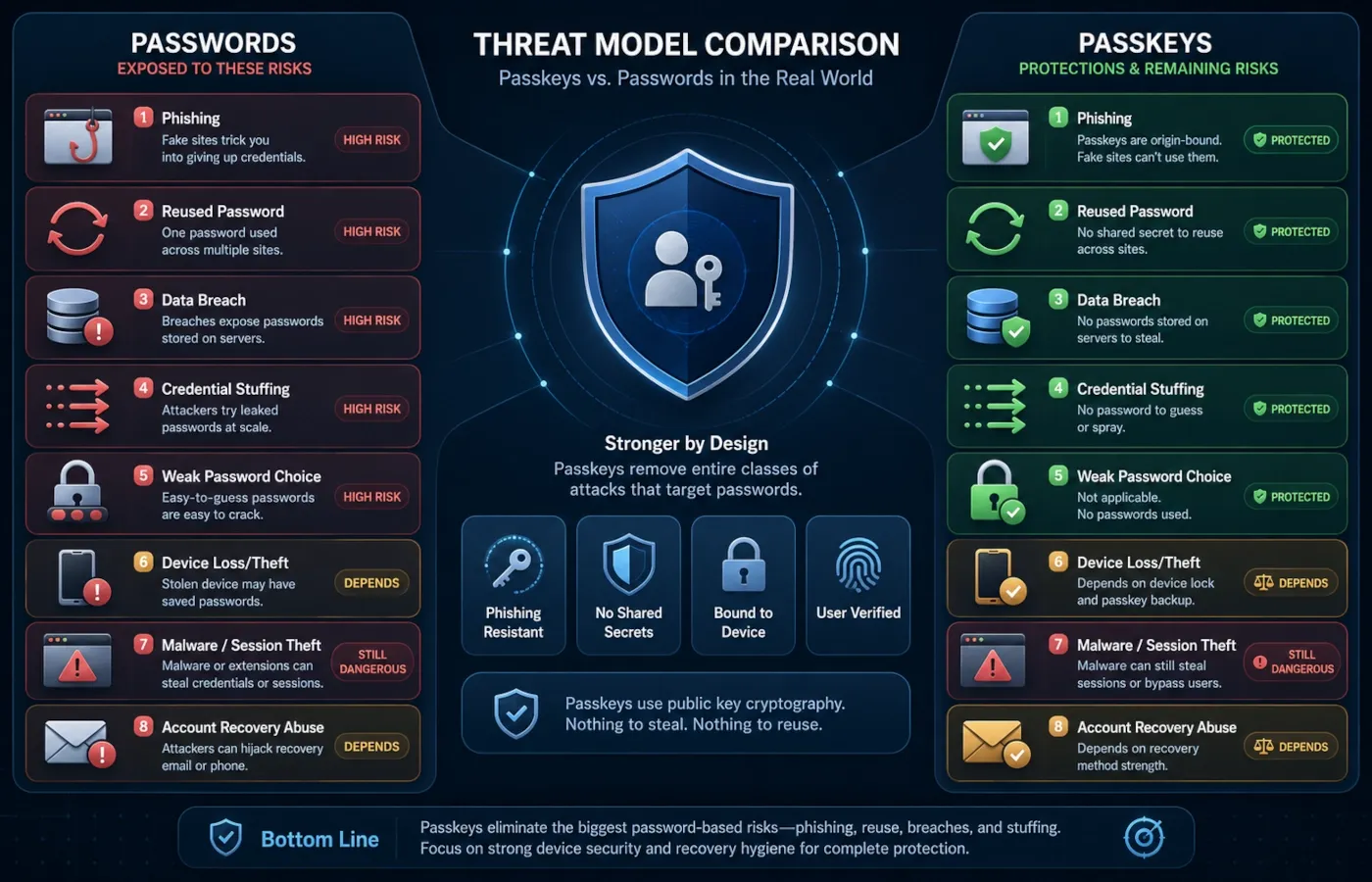
The best way to compare passkeys and passwords is to look at the threats they are meant to handle.
| Risk | Password | Passkey | Winner |
|---|---|---|---|
| Phishing page | Can trick you into typing it | Usually cannot be used on the wrong site | Passkey |
| Reuse across sites | Common and dangerous | Not reused like a password | Passkey |
| Company data breach | Password hashes can be stolen | Public key is not useful as a password | Passkey |
| Credential stuffing | Very vulnerable if reused | Strong protection | Passkey |
| Weak user choices | Common | No user-created secret | Passkey |
| Device theft | Password may still be safe if not stored | Risk if device is unlocked or recovery is weak | Depends |
| Malware/session theft | Still dangerous | Still dangerous | Tie |
| Account recovery abuse | Dangerous | Still dangerous | Tie |
| Compatibility | Very high | Still growing | Password |
| Simplicity for beginners | Familiar but often unsafe | Easy when setup is good, confusing when recovery is unclear | Depends |
This table shows the real answer: passkeys are better for several major security risks, but they do not make every other risk disappear.
Phishing
Passkeys are a major improvement against classic phishing because you are not typing a reusable password into a login form.
Passwords are much weaker here. Even strong passwords can be stolen if typed into a convincing fake page.
Data breaches
If a password-based system is breached, password hashes may be exposed. Strong hashing can reduce damage, but weak, reused, or already-leaked passwords remain a major risk.
With passkeys, the server stores a public key. The private key stays with the user’s authenticator, credential manager, or security key.
That makes passkeys stronger against the kind of breach where attackers steal credentials from a company and reuse them elsewhere.
Credential stuffing
Credential stuffing depends on password reuse.
If your password from one breached site is reused on another account, attackers can try it automatically.
Passkeys are not reused like that, so they strongly reduce this risk.
Device loss
Device loss is more complicated.
If your passkey is synced through a secure credential manager, you may be able to recover it on a new trusted device. If it is device-bound or stored only on a physical security key, losing that device can remove that sign-in method.
This is why high-value accounts should have more than one trusted access method.
Malware and session theft
Passkeys do not solve everything.
If malware controls your device, or an attacker steals an active session cookie after you are already signed in, your account can still be at risk. This is not a traditional password problem or passkey problem. It is a device and session security problem.
Keep your devices updated, avoid suspicious browser extensions, and review account activity for sensitive accounts.
Account recovery abuse
Attackers often target recovery flows because recovery can bypass strong sign-in methods.
If your email recovery, phone recovery, support process, or backup codes are weak, your account can still be vulnerable even if you use passkeys.
This is why recovery security is part of the passkey vs password decision.
Convenience comparison: remembering, typing, syncing and recovery
Security is only one part of the decision. The other part is daily usability.
| Convenience factor | Password | Passkey |
|---|---|---|
| Remembering | Hard unless stored in a password manager | Usually no memorization |
| Typing | Can be annoying, especially on phones | Usually faster |
| Setup | Familiar | Sometimes confusing the first time |
| Cross-device use | Easy with a password manager | Depends on where the passkey is saved |
| Recovery | Familiar but often weak | Stronger when planned, confusing when not |
| Family/shared devices | Risky if passwords are saved poorly | Risky if passkeys are created on shared devices |
| Travel/new device | Password manager can help | Synced passkeys can help, device-bound passkeys need backup |
For most people, passkeys are easier once they are set up correctly.
The weak point is not daily sign-in. The weak point is understanding where the passkey is stored and what happens if you change devices, lose a phone, switch ecosystems, or reset a computer.
What happens if a website still keeps your password?
This is one of the most important points in the whole article.
Many services do not immediately remove your password after you create a passkey. They allow:
password + passkeyThat can be convenient, but it changes the security picture.
If the account still allows password sign-in, your password still matters. A passkey makes sign-in safer, but it does not automatically remove the risk of a weak password, reused password, leaked password, or weak recovery method.
For example, imagine this setup:
- you create a passkey for your account;
- the website still allows password login;
- your old password is reused on another site;
- that other site is breached;
- attackers try the same password on your account.
In that case, the passkey helped, but the old password is still part of the attack surface if password sign-in remains enabled.
Use this rule:
If password sign-in remains enabled, keep a long unique password in your password manager and enable 2FA if the account supports it.
If you are not sure whether password sign-in is still enabled, check the account’s security settings.
Look for sections such as:
- Password;
- Sign-in methods;
- Login options;
- Passkeys;
- Two-step verification;
- Recovery options;
- Recent activity;
- Devices.
Should you use a passkey, a password, or both?
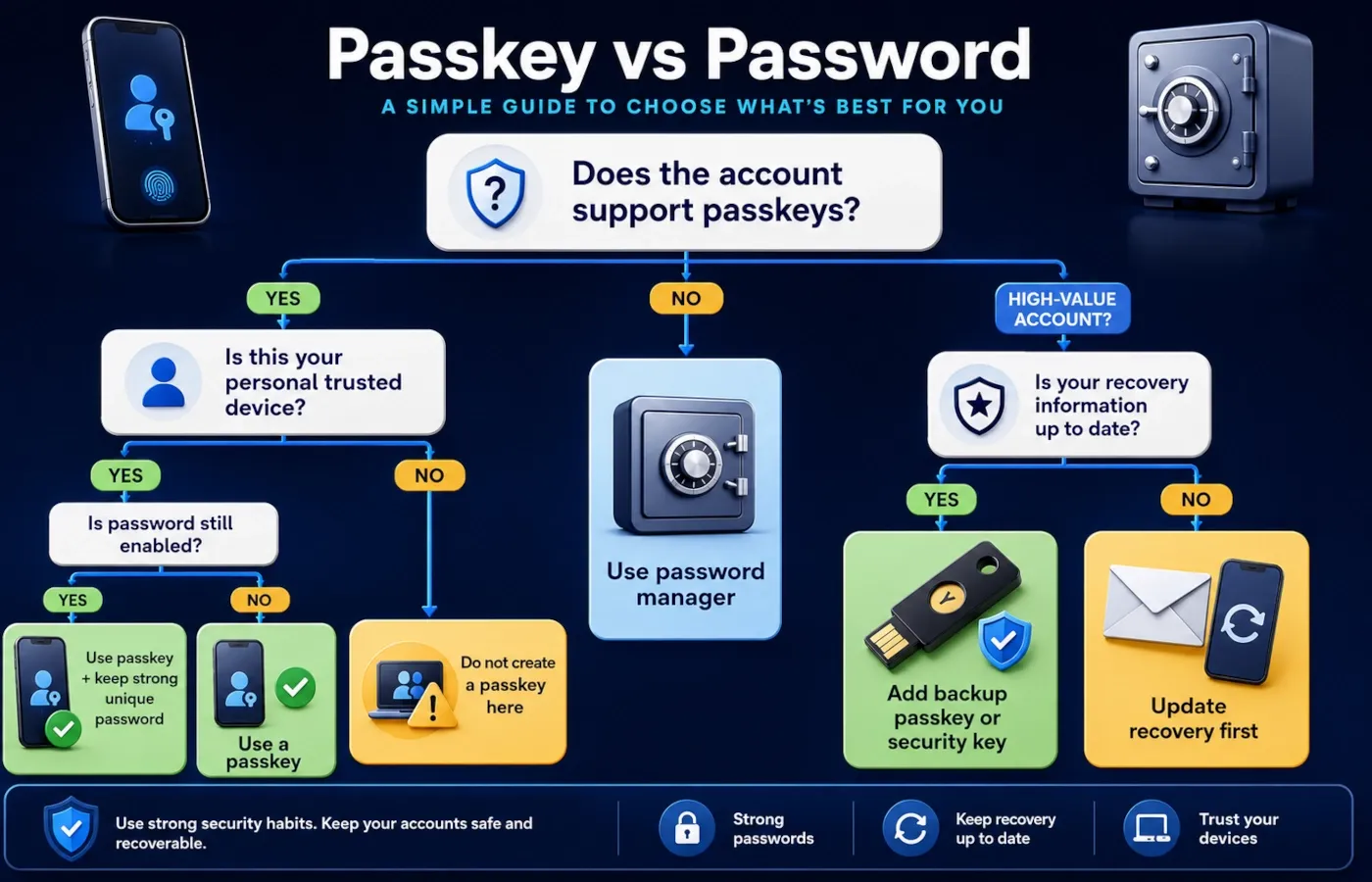
The right answer depends on the account.
| Situation | Best choice |
|---|---|
| The account supports passkeys and you use your own device | Use a passkey |
| The account does not support passkeys | Use a strong unique password in a password manager |
| The account supports both password and passkey | Use the passkey, but keep the password strong and unique |
| The account is high-value | Use passkey plus backup method and strong recovery protection |
| You are on a shared or public device | Do not create a passkey there |
| You are unsure where the passkey will be saved | Pause and check before creating it |
| You are about to sell, wipe, or replace a device | Confirm backup access first |
| You cannot afford to lose access | Create more than one trusted sign-in method |
For most personal accounts, use passkeys where available. But do not delete your security plan. Recovery still matters.
Best setup for most people
The safest everyday setup is not passkey only or password only.
It is:
- Use passkeys for important accounts that support them.
- Keep a unique password in a password manager for accounts that still need passwords.
- Enable 2FA where passkeys are not available or where the account requires it.
- Keep recovery email, recovery phone and backup codes updated.
- Add a second passkey or hardware security key for important accounts.
- Never create passkeys on shared or public devices.
This setup works because it accepts reality.
Passkeys are safer, but not every account supports them. Password managers are still useful, but passwords remain vulnerable if reused or weak. Two-factor authentication still matters where passwords are part of the login flow.
A practical setup beats a perfect theory.
Best setup for high-value accounts
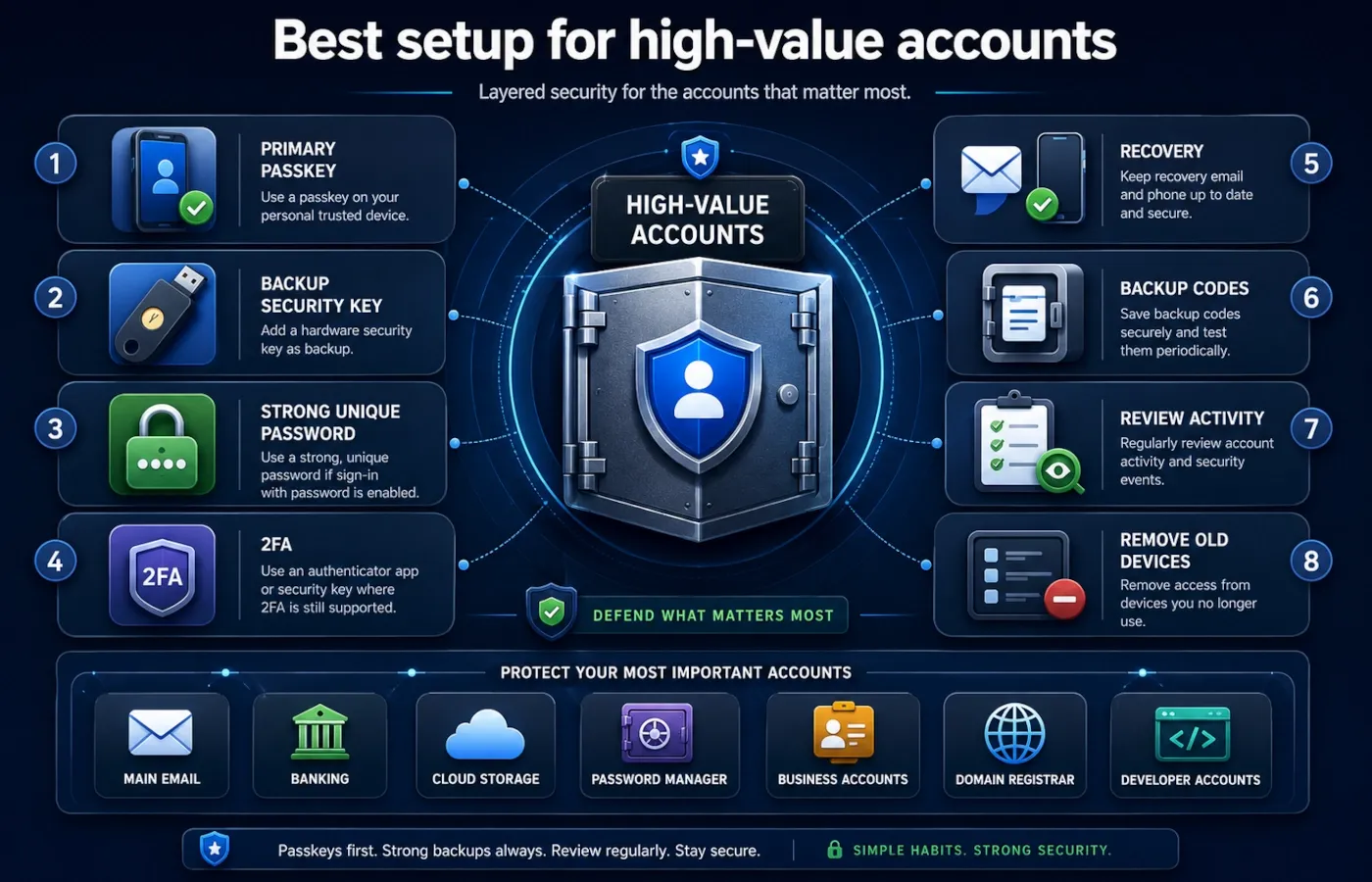
Some accounts deserve stronger protection than normal shopping or entertainment accounts.
High-value accounts include:
- main email account;
- banking and payment accounts;
- cloud storage;
- password manager account;
- business accounts;
- creator accounts;
- crypto or exchange accounts;
- domain registrar account;
- developer accounts;
- work administration accounts.
For these accounts, use a stronger setup:
Passkey + strong device lock + backup passkey/security key + updated recovery methods + account activity reviewA good high-value account setup looks like this:
- one primary passkey on your personal device;
- one backup passkey on another trusted device or hardware security key;
- a strong unique password if password sign-in is still enabled;
- 2FA where it still applies;
- updated recovery email and phone number;
- saved backup codes where offered;
- recent activity reviewed after major security changes;
- old devices removed from account access.
For accounts where password sign-in still matters, read How to turn on two-factor authentication.
When not to use a passkey
Passkeys are safer in many cases, but you should not create one blindly.
Avoid creating a passkey when:
- you are using a public computer;
- you are using a shared family device without separate user accounts;
- you are on a school, work, library, or internet cafe device you do not control;
- someone else knows the device PIN or can unlock the device;
- you do not know where the passkey will be stored;
- your recovery email or phone number is outdated;
- you are about to wipe or replace the device;
- the account is critical and you have no backup method;
- you are being pressured by a suspicious message or support request.
Also be careful with unexpected passkey prompts.
If you did not start a sign-in or security change, do not approve it. Open the account manually from your browser or app and check the security settings yourself.
Do you still need a password manager?
Yes, most people should still use a password manager.
Passkeys reduce the need for passwords on supported accounts, but they do not replace every function of a password manager.
A password manager can still help you:
- store passwords for sites without passkeys;
- generate long random unique passwords;
- store passkeys if your password manager supports them;
- detect reused, weak, or compromised passwords;
- store recovery codes;
- keep secure notes;
- sync credentials across devices;
- share selected credentials safely with family or team members.
A passkey helps you sign in safely where supported. A password manager helps you manage the messy reality of all your accounts.
If your password manager supports passkeys, it may become the place where you manage both passwords and passkeys. That can be convenient, but it also means your password manager account becomes even more important to protect.
Use a strong master password, enable 2FA or passkeys where available, and keep recovery options secure.
Do passkeys replace two-factor authentication?
Not exactly.
A password is traditionally “something you know.” A second factor might be “something you have” or “something you are,” such as an authenticator app, security key, or device approval.
A passkey changes the sign-in model. In many cases, it can replace the password as the primary sign-in method. It may also satisfy strong authentication requirements because using it usually requires possession of a device or security key plus local unlock.
But the exact role depends on the website, app, operating system, browser, and account policy.
For normal users, use this practical rule:
- if the account uses passwords, enable 2FA where possible;
- if the account supports passkeys, use passkeys where available;
- if the account is high-value, keep at least one backup method;
- do not assume that a passkey removes the need to protect recovery methods.
Passkeys can reduce the need for traditional 2FA prompts on some accounts, but they do not remove the need for a full account security plan.
What to check before turning on passkeys
Before creating a passkey for an important account, check these items.
1. Is this your device?
Only create passkeys on devices you control.
Do not create passkeys on public computers, shared devices, or someone else’s phone.
2. Is your device lock secure?
Your passkey is only as practical as the device unlock experience around it.
Use a strong device PIN, passcode, fingerprint, face scan, screen lock, Windows Hello, or hardware security key. Avoid weak PINs that other people know.
3. Where will the passkey be saved?
Before you confirm, check whether the passkey will be saved in:
- Apple Passwords or iCloud Keychain;
- Google Password Manager;
- Windows Hello;
- Microsoft account or Microsoft Password Manager;
- Chrome or browser credential manager;
- third-party password manager;
- hardware security key.
If you do not know where it will be stored, pause and check.
4. Do you have a backup method?
For important accounts, do not rely on one device only.
Have at least one backup option, such as:
- another passkey on a second trusted device;
- a hardware security key;
- recovery codes;
- updated recovery email;
- updated recovery phone;
- a strong password and 2FA where still required.
5. Is password sign-in still enabled?
After creating a passkey, check whether the account still allows password login.
If it does, keep the password strong and unique.
6. Are old devices removed?
Review signed-in devices and old passkeys.
Remove devices you sold, lost, no longer use, or do not recognize.
Common mistakes
Creating passkeys on shared devices
A passkey should be created on a device you control. If someone else can unlock the device, they may be able to approve sign-ins.
Assuming passkeys make recovery unimportant
Recovery is still critical. A weak recovery email, outdated phone number, or insecure support process can still expose an account.
Keeping a weak password active
If password sign-in remains enabled, a weak password is still a risk. Store a long unique password in a password manager.
Not knowing where the passkey was saved
If you do not know whether the passkey is in Apple Passwords, Google Password Manager, Windows Hello, a browser, a third-party password manager, or a hardware security key, managing it later can become stressful.
Wiping an old phone too early
Before wiping, selling, or replacing a phone, confirm that your important passkeys are available elsewhere or that you have backup recovery methods.
Treating passkeys as protection against malware
Passkeys reduce phishing and password theft risk, but malware, malicious browser extensions, session theft, and device compromise can still be dangerous.
Approving prompts you did not start
Do not approve sign-in prompts, passkey prompts, or recovery prompts that you did not initiate.
Security, privacy and safety notes
Passkeys improve account security, but they should be used carefully.
A passkey does not send your fingerprint, face scan, or device PIN to the website. Those methods usually unlock the credential locally on your device or through your credential manager.
The website verifies a cryptographic response. It does not need your private passkey.
That privacy model is one of the reasons passkeys are considered stronger than passwords. But practical security still depends on your whole setup.
Use these safety rules:
- keep your phone, computer, and browser updated;
- protect your main email account first;
- use a strong screen lock or device PIN;
- avoid installing suspicious browser extensions;
- review signed-in devices for important accounts;
- remove old passkeys and old devices;
- protect your password manager account;
- keep backup codes somewhere secure;
- use hardware security keys for accounts where losing access would be serious;
- never create passkeys on public or shared devices.
If you think an account password may already be exposed, read How to check if your password was leaked.
Faster alternative
If you only want the shortest practical rule, use this:
Turn on passkeys for important accounts when you are using your own device, your recovery methods are current, and you know where the passkey will be stored. Keep using a password manager for every account that still requires a password.
That rule is not as complete as reviewing every setting, but it is safer than refusing passkeys or relying on reused passwords.
FAQ
Are passkeys safer than passwords?
Usually, yes. Passkeys are safer than passwords for many accounts because they are unique to each service, much harder to phish, and do not require you to type a reusable secret into a login form.
Passwords can still be safe when they are long, random, unique, stored in a password manager, and protected with 2FA. But passkeys remove several of the most common password failure points.
Is it better to use a passkey or a password?
Use a passkey when the account supports it and you are using a device you control.
Use a strong unique password in a password manager when the account does not support passkeys.
If the account supports both, use the passkey for sign-in but keep the password strong if password login remains enabled.
Do passkeys replace passwords completely?
Not always.
Some services let passkeys replace passwords for normal sign-in. Others keep password sign-in as a fallback. Many websites still do not support passkeys at all.
That is why most people still need both passkeys and a password manager.
Do I still need a password manager if I use passkeys?
Yes. A password manager is still useful for accounts without passkeys, accounts that keep password sign-in enabled, recovery codes, secure notes, and sometimes passkey storage.
Passkeys reduce password dependence. They do not instantly remove every password from your digital life.
Can passkeys be hacked?
Passkeys are much harder to steal than passwords through normal phishing, but they are not magic.
Risks can still come from malware, malicious browser extensions, stolen unlocked devices, weak account recovery, social engineering, or session theft.
The passkey itself is stronger than a typed password, but your device and recovery setup still matter.
What happens if I lose my phone with passkeys?
It depends on where the passkeys were stored.
If they were synced through a credential manager such as Apple Passwords, Google Password Manager, Microsoft Password Manager, or a third-party password manager, you may be able to recover them on a new trusted device.
If they were device-bound or stored only on a physical security key, you need another recovery method, such as a backup passkey, recovery codes, recovery email, recovery phone, or another security key.
Can I use both a passkey and a password?
Yes, many services allow both.
That can be useful, but it also means your password may still be part of the account’s security. If password sign-in is still enabled, keep the password long, unique, and stored in a password manager.
Do passkeys replace two-factor authentication?
Sometimes passkeys can reduce the need for traditional 2FA prompts, but they do not always replace 2FA in every account or organization.
If an account still uses password sign-in, 2FA is still useful. If the account is high-value, keep backup methods and recovery protection even when using passkeys.
Are Apple passkeys safer than passwords?
Apple passkeys are designed to be more secure than passwords because they are based on public key cryptography, are resistant to phishing, and can be used with device unlock methods such as Face ID, Touch ID, or a device passcode.
The practical safety also depends on your Apple Account, iCloud Keychain settings, device security, and recovery methods.
Are Google passkeys safer than passwords?
Google passkeys are generally safer than passwords because they reduce the need to type a password and are designed to protect against phishing and password reuse.
As with any provider, the safety depends on your device security, account recovery settings, and whether password sign-in is still enabled.
Should I use a passkey for banking?
Use a passkey for banking if your bank supports it, the device is yours, your recovery methods are current, and you understand the bank’s login and recovery process.
For financial accounts, keep backup access methods and monitor account activity. If the bank still allows password sign-in, keep that password strong and unique.
Should I create passkeys on all my accounts?
Create passkeys first for important accounts where you control the device and understand recovery.
Start with your main email, password manager, cloud storage, payment accounts, and business accounts. Do not create passkeys on shared or public devices.
What should I do before turning on passkeys?
Before turning on passkeys, update your recovery email and phone number, make sure your device lock is secure, check where the passkey will be stored, and decide how you will recover the account if your device is lost.
For important accounts, add a second trusted sign-in method.
Related articles
- What is a passkey?
- How to create a strong password
- How to turn on two-factor authentication
- How to check if your password was leaked
- How to use a password manager safely
- What to do if you lose access to your passkeys
Editorial sources
This article follows current passkey, password and account security guidance from:
- FIDO Alliance — Passkeys
- FIDO Alliance — How FIDO Works
- Google for Developers — Passkeys
- Google Account Help — Sign in with a passkey instead of a password
- NCSC — Passkeys: what you need to know
- Apple Support — About the security of passkeys
- Apple Support — Use passkeys to sign in to websites and apps on iPhone
- Microsoft Support — What are passkeys and why they matter
- Microsoft Learn — Support for passkeys in Windows
- NIST SP 800-63B — Digital Identity Guidelines
- CISA — Use Strong Passwords
- OWASP Authentication Cheat Sheet
- OWASP Multifactor Authentication Cheat Sheet
Last tested
Tested and reviewed against:
- Google Account passkey settings
- Apple Passwords and iCloud Keychain documentation
- Microsoft account passkeys
- Windows Hello passkey documentation
- Chrome passkey sign-in behavior
- Browser and password manager passkey prompts
- Current password security guidance from NIST, CISA and OWASP
Last reviewed: 2026-07-01