If your password was leaked, you should treat it as unsafe immediately. A leaked password can be used in credential stuffing attacks, where attackers try the same email and password combination on other websites.
The safest way to check is to use trusted tools only: your browser or password manager security check, Google Password Manager, Apple Passwords, Mozilla Monitor, or Have I Been Pwned. Do not type your real password into random websites.
This guide shows you how to check whether your email, account, or password appeared in a breach, how to understand the result, and what to change first.
Quick answer
To check if your password was leaked, start with the password checkup tool built into your browser, operating system, or password manager. Then search your email address in a trusted breach database such as Have I Been Pwned or Mozilla Monitor.
If a password is marked as compromised, change it immediately on that account and anywhere else you reused it. Then enable two-factor authentication, review recent login activity, and save a new unique password in a password manager.
A “not found” result does not prove that a password is safe forever. It only means that the password or email address was not found in the specific breach database checked at that time.
When to use this solution
Use this guide if:
- You received a data breach notification.
- Google, Chrome, Apple, Firefox, or your password manager warned you about a compromised password.
- You reused the same password on more than one account.
- You saw news about a major password leak.
- You want to check your accounts before something goes wrong.
- You are not sure whether a breach exposed your email, your password, or only other personal data.
Before you start
Before checking anything, follow these safety rules:
- Do not enter your real password into random websites.
- Prefer built-in tools from your browser, operating system, or password manager.
- If you use Have I Been Pwned, use the official website only.
- If a password appeared in a breach, do not reuse it.
- If you receive a breach alert by email or text, do not click suspicious links. Go directly to the official website or app instead.
Trusted tools can help, but no tool can guarantee that a password has never been stolen. Breach checkers can only compare your information with known breach data.
How to check if your password was leaked
Step 1: Check your saved passwords first
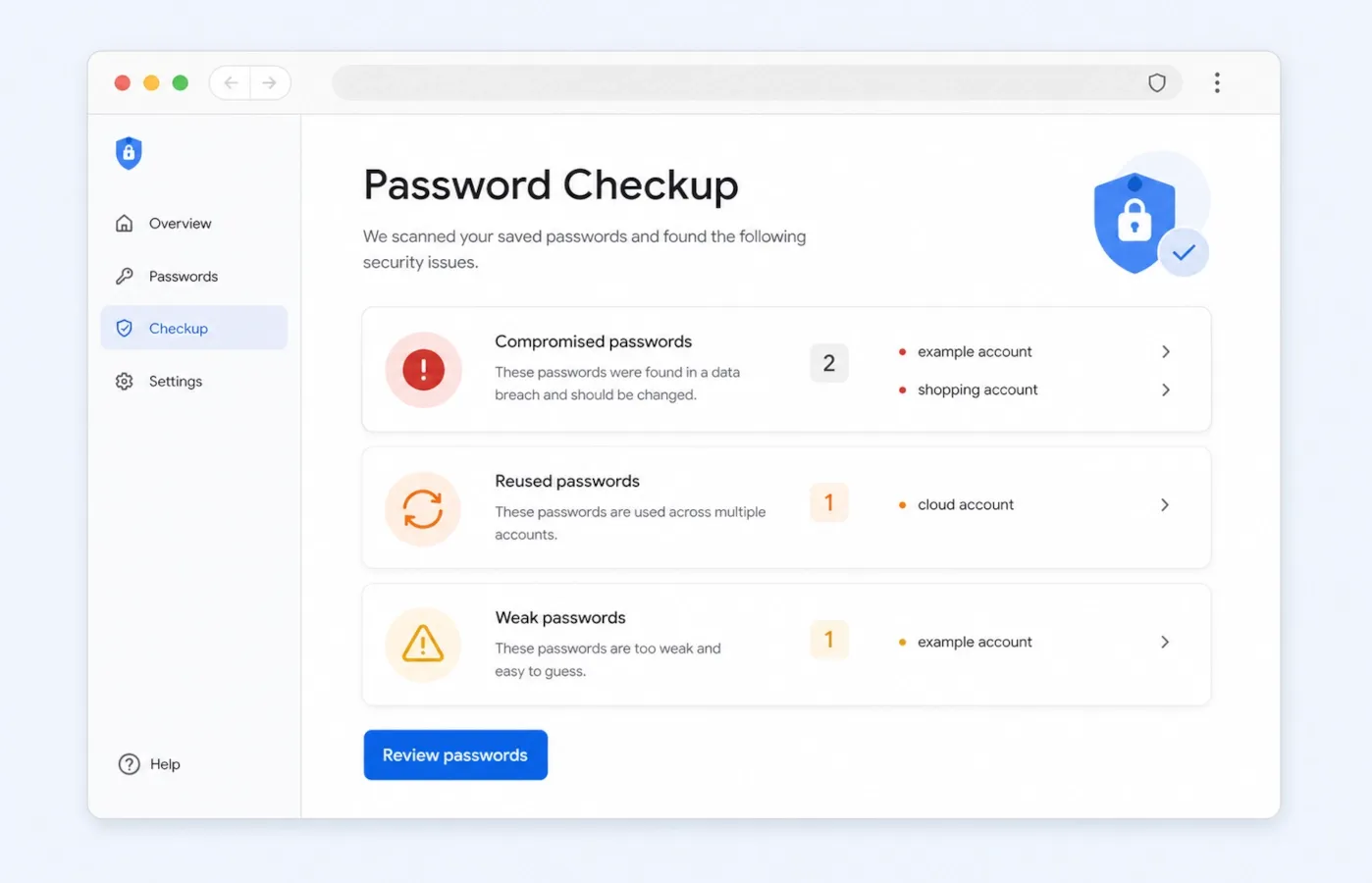
Start with the passwords already saved in your browser, phone, computer, or password manager.
Good places to check include:
- Google Password Manager
- Apple Passwords
- Chrome Password Checkup
- Firefox password alerts
- 1Password Watchtower
- Bitwarden Vault Health Reports
- Proton Pass Pass Monitor
- NordPass Data Breach Scanner
Look for warnings such as:
- Compromised password
- Reused password
- Weak password
- Password found in a data breach
- At-risk account
This is usually the fastest method because it checks the passwords you actually saved and use. For example, Google Password Manager can show whether saved passwords are compromised, weak, or reused.
If your password manager shows a compromised password, do not wait. Change it.
Step 2: Check your email address in a trusted breach database
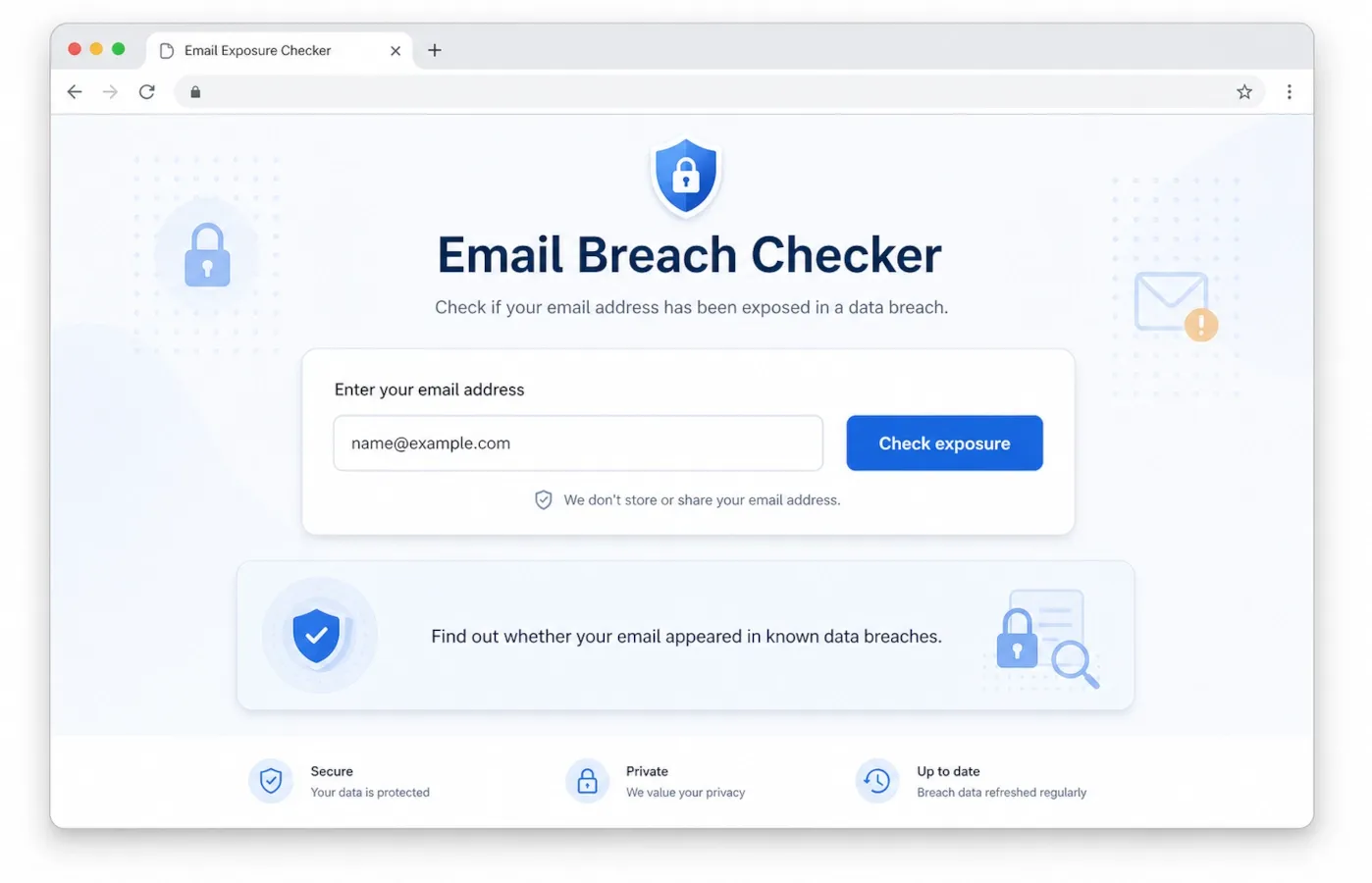
Next, check whether your email address appeared in known data breaches.
You can use:
Enter your email address and review the results. This tells you whether that email appeared in known breaches.
Important: if your email appears in a breach, it does not always mean your current password was leaked. It means your email was found in breach data. The exposed information may include your email address, username, old password, phone number, name, address, or other account details depending on the breach.
Step 3: Understand what the result actually means
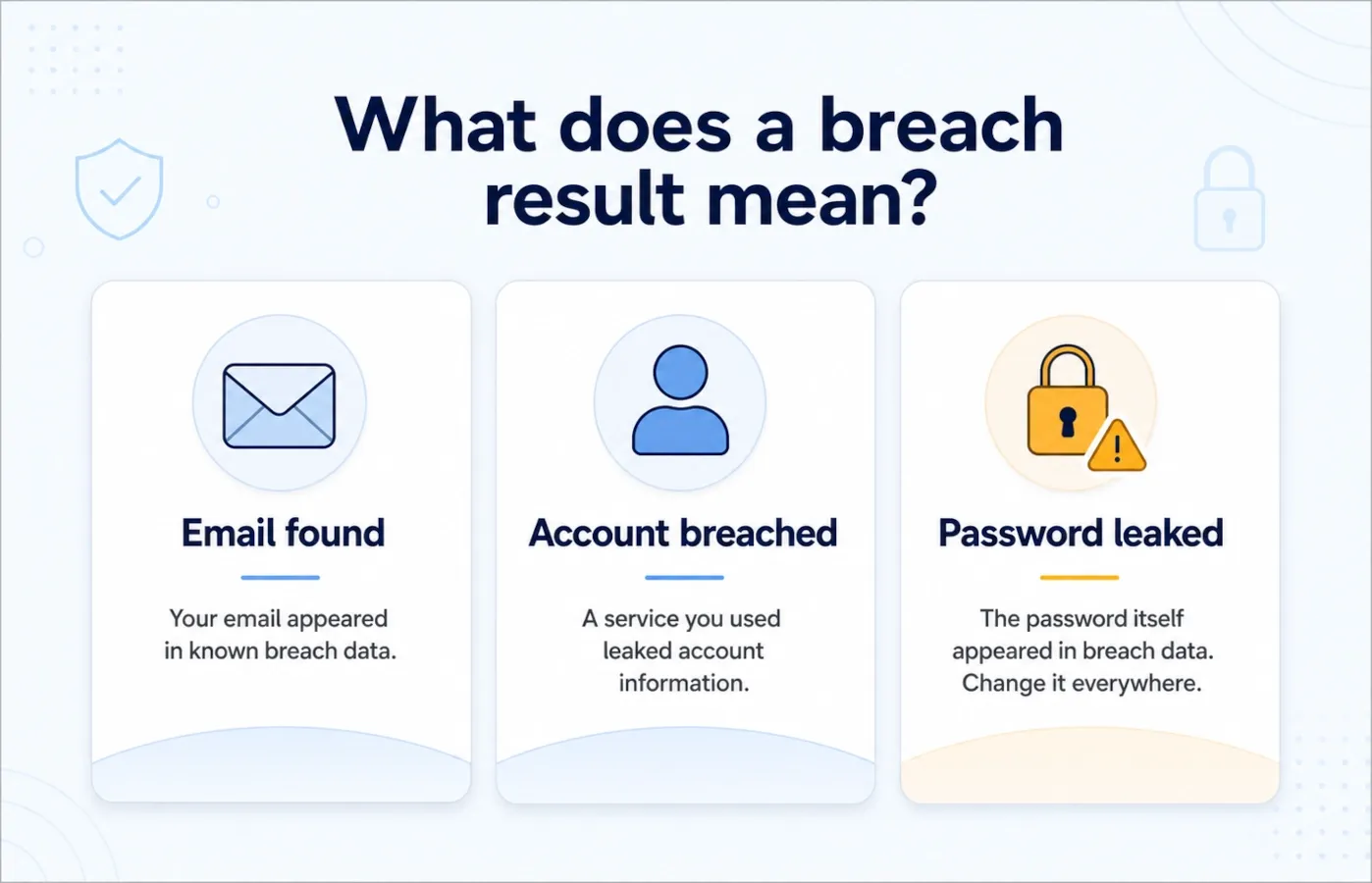
This is the part many people miss.
There are three different situations:
| Result | What it usually means | What to do |
|---|---|---|
| Your email was found | Your email appeared in a known breach | Read the breach details and secure the affected account |
| Your account was breached | A service where you had an account leaked data | Change that account password and review exposed data |
| Your password was leaked | The password itself appeared in known breach data | Stop using it everywhere immediately |
If your email appears in a breach, the exposed data may include:
- your email address;
- an old password;
- a username;
- a password hash;
- your name;
- your phone number;
- your address;
- security questions;
- other personal account data.
Do not assume every breach is the same. Read the breach details before deciding what to change.
Step 4: Check whether the password itself is known to be leaked
If you need to check a specific password, use only a trusted tool.
One widely used option is Have I Been Pwned: Pwned Passwords. It checks whether a password has appeared in known data breaches.
Have I Been Pwned explains that Pwned Passwords uses a privacy-preserving approach called k-anonymity. In simple terms, your full password is not sent to the service for checking. The password is hashed locally, only part of the hash is used for the lookup, and the final comparison happens on your side.
Even with that protection, the safest everyday option is to use your password manager’s built-in security check whenever possible.
Step 5: Change the password on the affected account
If the password was leaked, change it on the affected website or app immediately.
Use a new password that is:
- unique to that account;
- long enough to resist guessing;
- not a small variation of the leaked password;
- saved in a password manager.
Do not change:
Password2025!to:
Password2026!That kind of pattern is too predictable. Use a completely new password instead.
Step 6: Change it everywhere you reused it
If you used the leaked password on more than one website, change it everywhere.
This is critical because attackers often try leaked email and password combinations on many services. This is called credential stuffing.
Prioritize accounts in this order:
- Email account
- Password manager account
- Banking and payment accounts
- Cloud storage accounts
- Social media accounts
- Shopping accounts
- Work or school accounts
- Any account that stores personal information
Your email account is especially important. If someone controls your email, they may be able to reset passwords for many of your other accounts.
Step 7: Enable two-factor authentication
After changing the password, turn on two-factor authentication where available.
Use the strongest option you can:
- Passkeys
- Security keys
- Authenticator apps
- SMS codes, if no better option is available
Two-factor authentication helps protect your account if a password is stolen. It is not a reason to keep using a leaked password, but it adds an important second layer of protection.
Step 8: Review recent activity and signed-in devices
After a password leak, check the account’s security settings.
Look for:
- unknown devices;
- unfamiliar locations;
- login times you do not recognize;
- new recovery email addresses;
- new phone numbers;
- unknown connected apps;
- forwarding rules in your email account;
- suspicious payment methods or orders.
If the service offers a “sign out of all devices” option, use it after changing the password.
Step 9: Watch for phishing after the breach
After a breach, scammers may use exposed information to make phishing messages look more believable.
Be careful with messages that:
- create urgency;
- ask you to “verify” your account;
- ask for your password or 2FA code;
- include unexpected attachments;
- claim your account will be closed;
- send you to a lookalike login page.
Do not use links from suspicious emails or texts. Open the official website or app yourself.
Step 10: Save the new password in a password manager
Use a password manager to store a different password for every account.
This matters because one leaked password should not put all your accounts at risk. If every account has a unique password, a breach on one website does not automatically expose your other accounts.
If you do not already use a password manager, start with the tool built into your device or browser, then consider a dedicated password manager when you are ready.
Common mistakes to avoid
Avoid these mistakes:
- Checking your real password on random websites.
- Changing only one account when the same password was reused elsewhere.
- Creating a small variation of the leaked password.
- Ignoring your email account.
- Ignoring old accounts you no longer use.
- Trusting breach alert emails without visiting the official site directly.
- Thinking “not found” means “safe forever”.
- Saving passwords in plain text notes or screenshots.
- Reusing the same password for low-value and high-value accounts.
- Sharing 2FA codes with anyone who contacts you.
Security and privacy notes
A password leak checker can only compare your information with known breach databases. It cannot prove that a password was never stolen, logged by malware, phished, guessed, or exposed somewhere that is not public.
If your password was leaked:
- treat it as permanently unsafe;
- do not reuse it;
- change it on every account where it was used;
- enable two-factor authentication;
- review recent account activity;
- sign out of unknown devices;
- check recovery email and phone settings;
- watch for phishing messages after the breach.
If your device may be infected with malware, changing the password may not be enough. Scan the device, update your operating system and browser, remove suspicious extensions, and change the password from a clean device.
Faster alternative
If you only have one minute:
- Open your password manager’s security check.
- Change every password marked as compromised.
- Search your email on Have I Been Pwned or Mozilla Monitor.
- Turn on two-factor authentication for your email account first.
- Replace reused passwords with unique ones.
If you have only one account to secure first, choose your email account. It is often the recovery key for everything else.
Recommended trusted tools
Use trusted tools instead of random password leak websites.
| Tool | Best for | Notes |
|---|---|---|
| Google Password Manager | Checking passwords saved in Google/Chrome | Can flag compromised, weak, and reused passwords |
| Apple Passwords | Checking passwords saved on iPhone, iPad, and Mac | Useful if you use iCloud Keychain |
| Have I Been Pwned | Checking whether an email appeared in known breaches | Read each breach result carefully |
| Pwned Passwords | Checking whether a password appears in known breach data | Use only the official page |
| Mozilla Monitor | Checking and monitoring email breach exposure | Works across browsers |
| Your password manager | Checking the accounts you actually use | Often the most practical first step |
What to do if your password was leaked
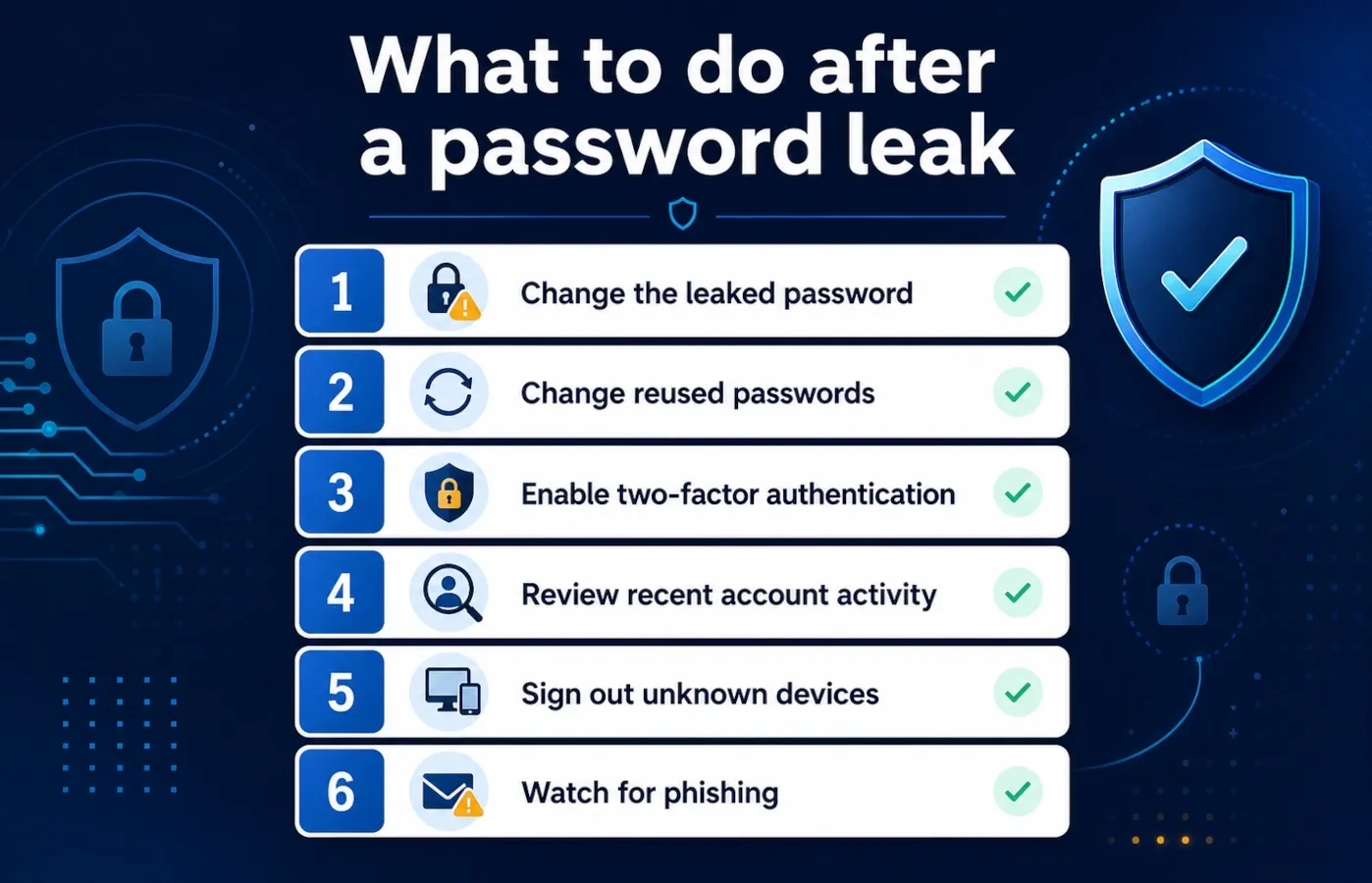
Use this checklist:
- Change the leaked password immediately.
- Change it everywhere you reused it.
- Use a long, unique replacement password.
- Save the new password in a password manager.
- Enable two-factor authentication.
- Review account activity.
- Remove unknown devices and sessions.
- Check recovery email and phone settings.
- Watch for phishing messages.
- Delete old accounts you no longer need.
FAQ
Does “pwned” mean my password was leaked?
Not always. It may mean your email address or account appeared in a breach. Read the breach details to understand what was exposed.
Is Have I Been Pwned safe?
Have I Been Pwned is one of the most widely used breach-checking services. For password checks, its Pwned Passwords feature uses a privacy-preserving method designed to avoid sending your full password to the service. Still, you should always make sure you are on the official website.
Should I change my password if my email was found in a breach?
Yes, if the breached service exposed passwords or if you reused that password elsewhere. If you are unsure, changing the password is the safer option.
What should I change first?
Start with your email account, banking accounts, password manager, cloud storage, social media, and shopping accounts.
Is a password safe if it was not found in a leak?
Not necessarily. It only means it was not found in that specific database at that time. A strong password should still be unique and stored safely.
Should I use a password manager?
Yes. A password manager helps you create and store unique passwords for every account, which limits the damage if one website is breached.
Should I use two-factor authentication?
Yes. Two-factor authentication helps protect your account even if someone gets your password.
Can I keep using a leaked password if I add two-factor authentication?
No. Two-factor authentication helps, but a leaked password should still be replaced.
What if I do not recognize a breached website?
The service may have changed names, been acquired, or you may have created an account years ago and forgotten it. If you can still access the account, change the password or delete the account if you no longer need it.
What if the leaked password is old?
If you no longer use that password anywhere, the immediate risk is lower. But do not reuse it again, and make sure no current account uses a similar version of it.
Related articles
- How to create a strong password
- What two-factor authentication means and how to turn it on safely
- How to use a password manager safely
- What to do after a data breach
- How to know if an email is a phishing scam
Sources
- Have I Been Pwned: Pwned Passwords
- Have I Been Pwned FAQ
- Google Account Help: Change compromised passwords
- Google Password Manager
- Mozilla Monitor
- Mozilla Monitor FAQ
- Mozilla Monitor: What to do after a data breach
- NIST Special Publication 800-63B
Last tested
Last tested: June 19, 2026
Tested platforms and references:
- Google Password Manager
- Chrome Password Checkup
- Have I Been Pwned
- Mozilla Monitor
- NIST SP 800-63B